 Open Middle®
(Updated October 13, 2025)
What are embedded problems?
Want to add Open Middle problems directly into your Canvas assignments or webpages? Embedded problems let you do just that with full control over what your students see. Embedded problems allow you to add interactive problems to your Canvas page, websites, and many other locations.
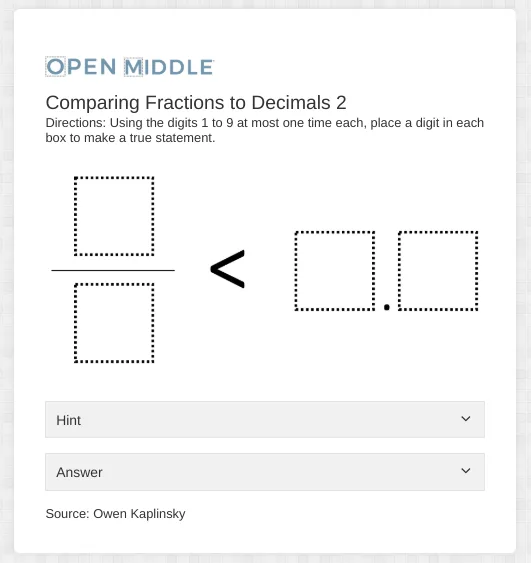
The image above shows what your students will see from an embedded problem. The title, description, hint, answer, and source are visible. Students are able to click on drop-downs to see more info, and enlarge the problem image by selecting it. Navigating to other problems, viewing comments, and browsing the site are not available.
How do you use them?
On problem pages, you will notice a new button: “Use this problem”.
Clicking this button will reveal a new pop-up.
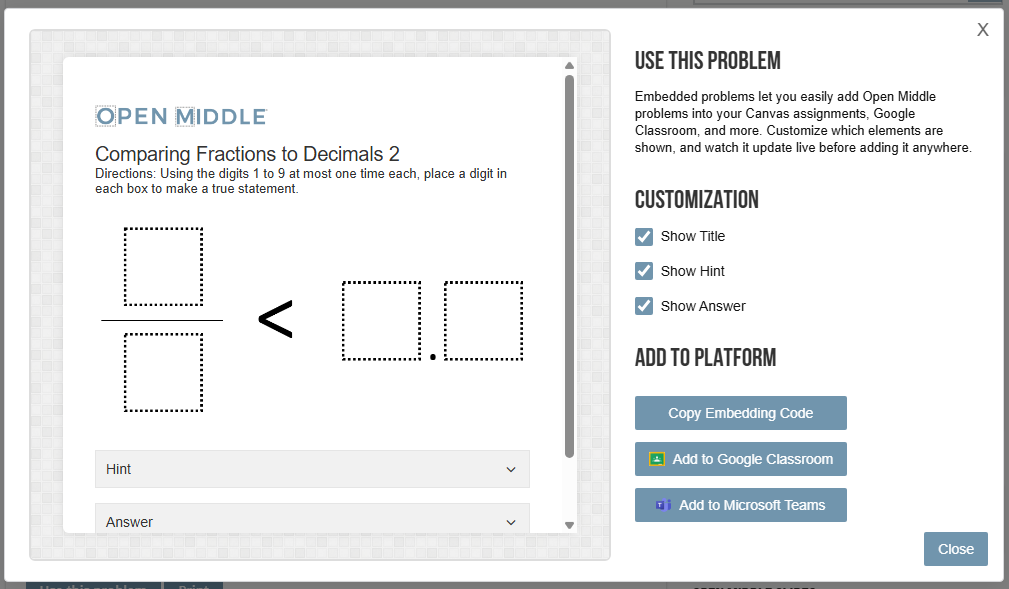
There are many settings which allow you to customize the embedded problem to your specific needs. As you change them, the preview on the lefthand side will update.
- Show Title: Toggle whether the title of the problem is visible.
- Show Hint: Toggle whether the hint drop-down is visible.
- Show Answer: Toggle whether the answer drop-down is visible. If you are using the embedded problem for students, it is recommended to disable this box.
Additionally, for Google Classroom and Microsoft Teams, you can use embedded problems with one click. Clicking them will open a new tab with the problem already attached! For other LMSs, you can press the “Copy Embedding Code” button to add an embedded problem.
Brief but very practical for the classroom.